
The Visual Flow Builder for Instagram (also labeled Flow Builder) draws Direct-message reply paths as connected nodes on one canvas: messages, media, buttons, quick replies, conditions, sequences, AI, and HTTP calls — then Save publishes the path. This guide is the Instagram-only encyclopedia: do not mix Facebook/Messenger steps here. The article is written so you can follow it without screenshots; figures are optional later.
Sidebar path: Instagram Tools → Bot Manager → select the account → Bot Reply → Create New Flow. The editor chip shows IG: plus the account name. If you see FB:, you are on the wrong surface.
Quick contrast with Facebook: Messenger has Get Started, Facebook Media, OTN, and unsubscribe/resubscribe templates. Instagram has no Get Started; entry is via DMs, Ice breakers, keywords, and Instagram action templates (Story mention, No match, Story private reply, Message unsend private reply). Facebook Media is not in the IG dock.
Before you start
- Under Integrations → Connect Accounts, confirm Instagram is linked and Enable Bot Connection is on.
- Sketch on paper: entry (keyword like «price» / ice breaker / story mention) → 3–5 nodes → a clear exit (store URL or human handoff).
- Review old keyword rules and the No Match template so a new flow does not fight them. See also Ice breakers.
- Prepare short button and quick-reply labels (one or two words).
- Align with Inbox on when the bot stops and a human takes over.
1) Open Instagram Bot Manager
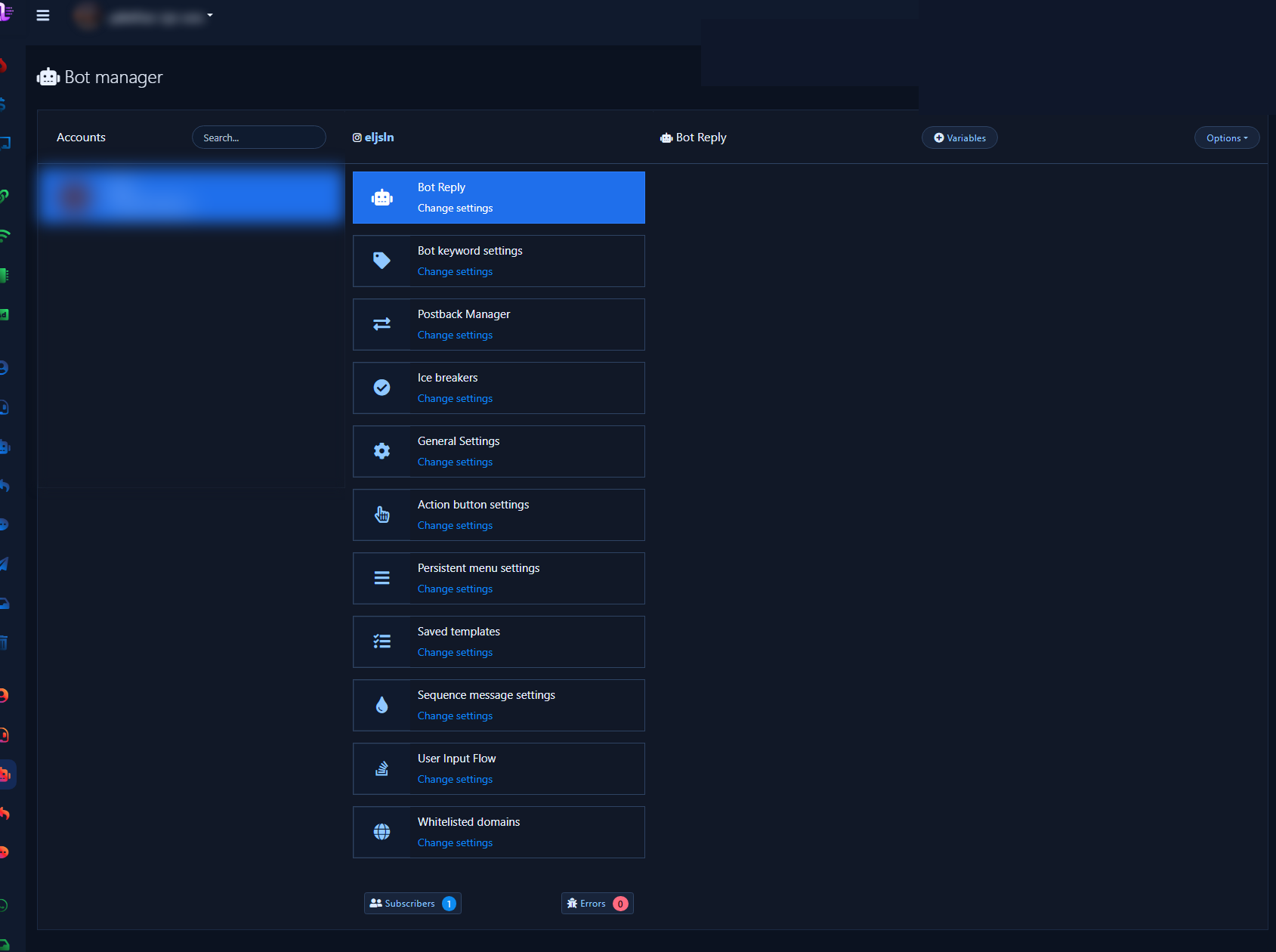
- Sidebar: Instagram Tools → Bot Manager.
- Select the correct account and wait for setting cards.
- Key cards: Bot Reply, Ice breakers, General Settings (No Match switch), Action button settings (system templates).
- Menu map: Instagram Bot Manager overview.
2) Bot Reply → flow list → Create New Flow
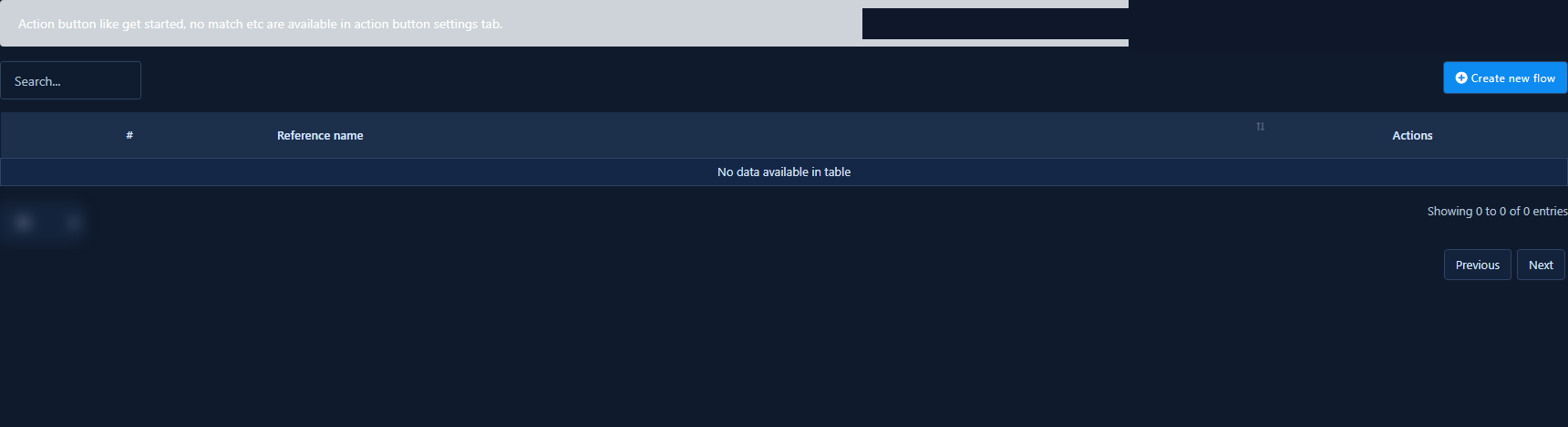
- Open Bot Reply (or Change settings).
- You see the action-button tip, Create New Flow, and the Reference Name table.
- Click Create New Flow — confirm the IG: chip next to Save.
3) Canvas basics: Start Bot Flow, dock, Save
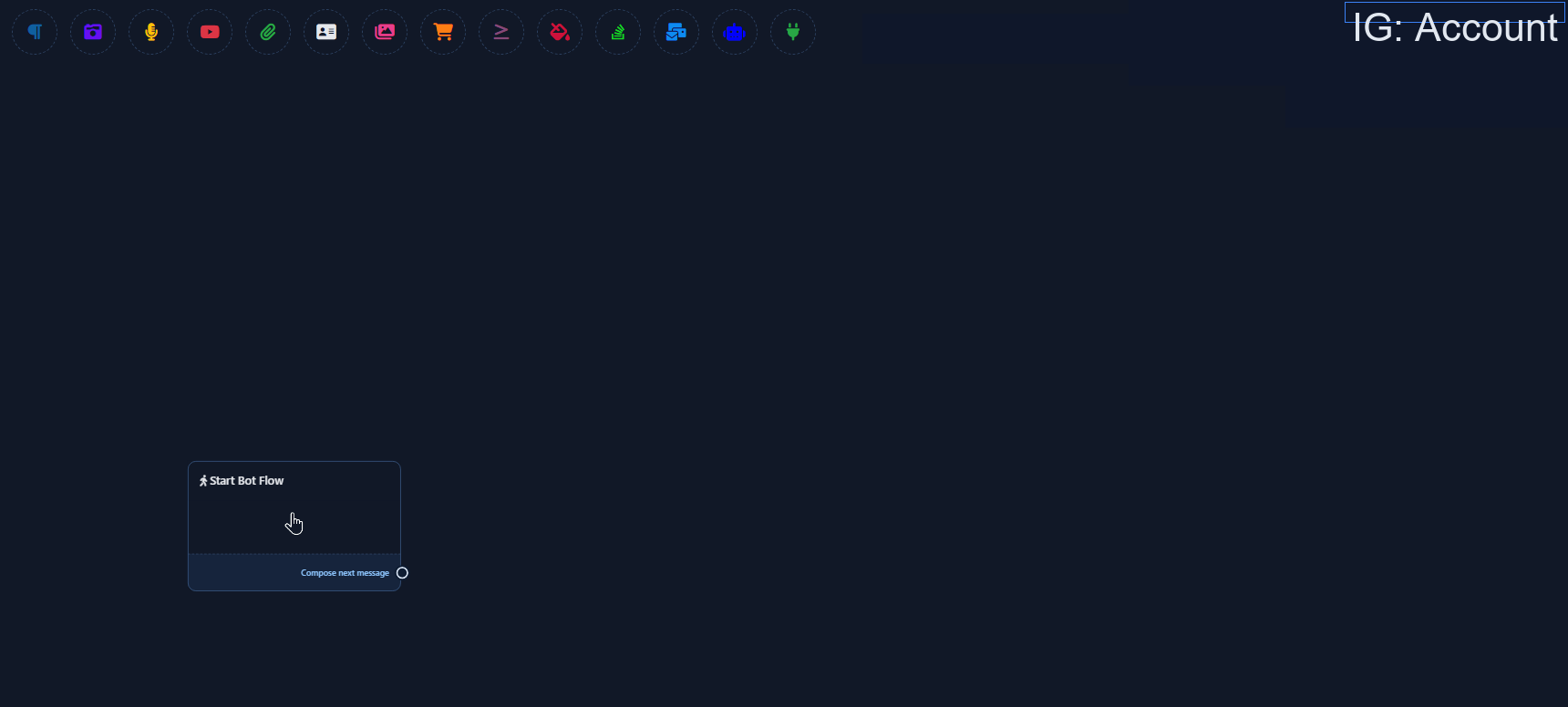
Start node
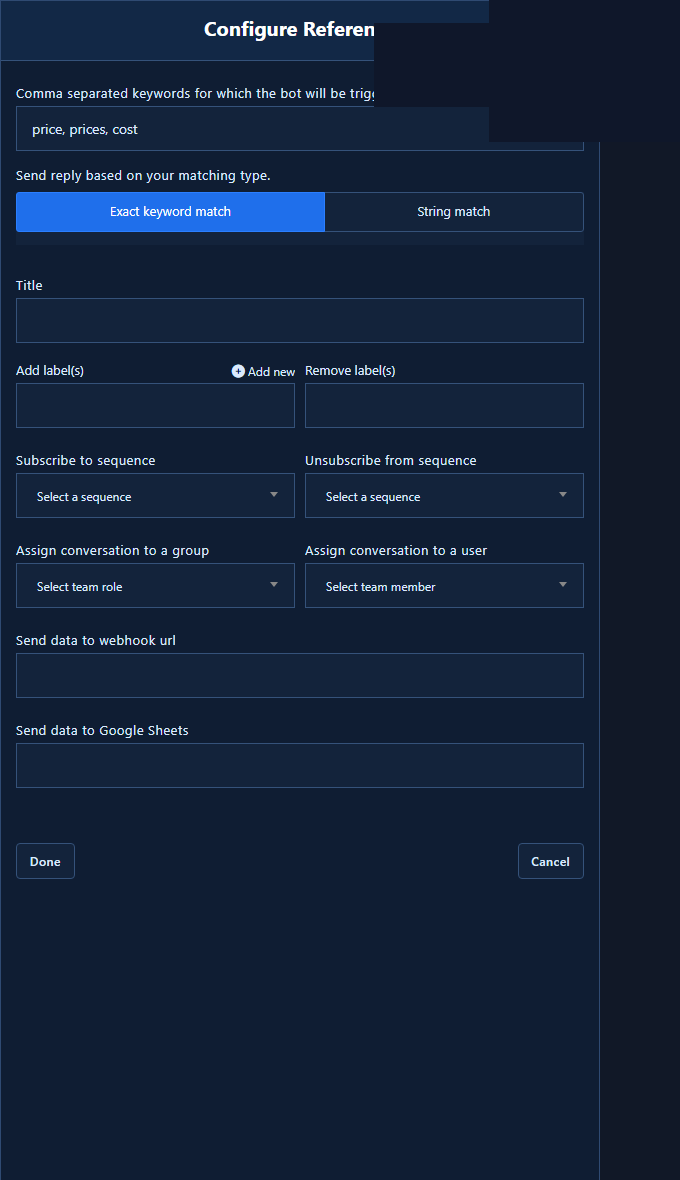
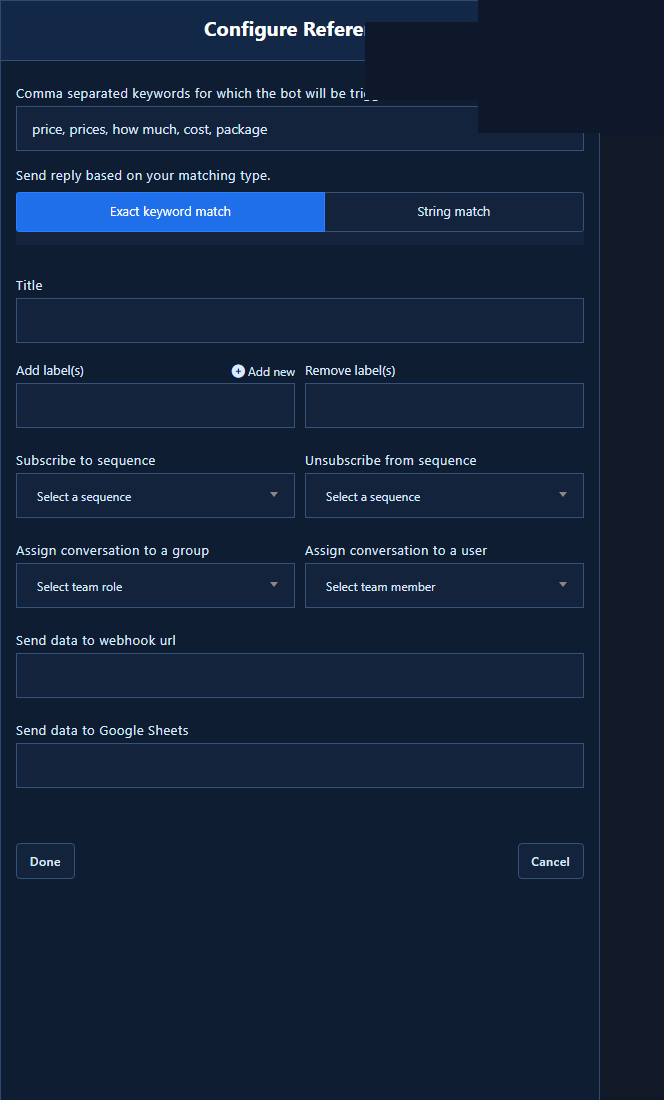
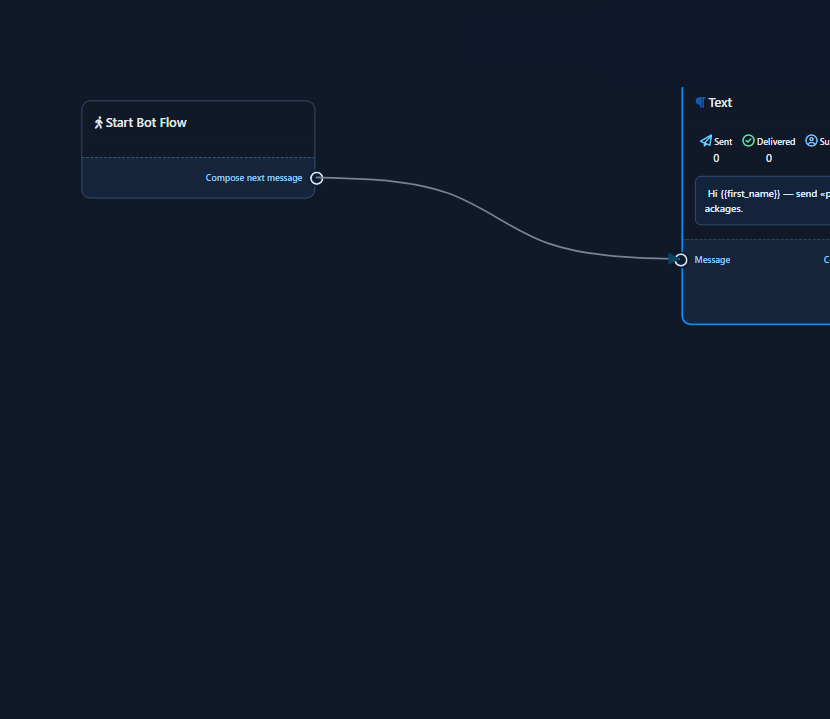
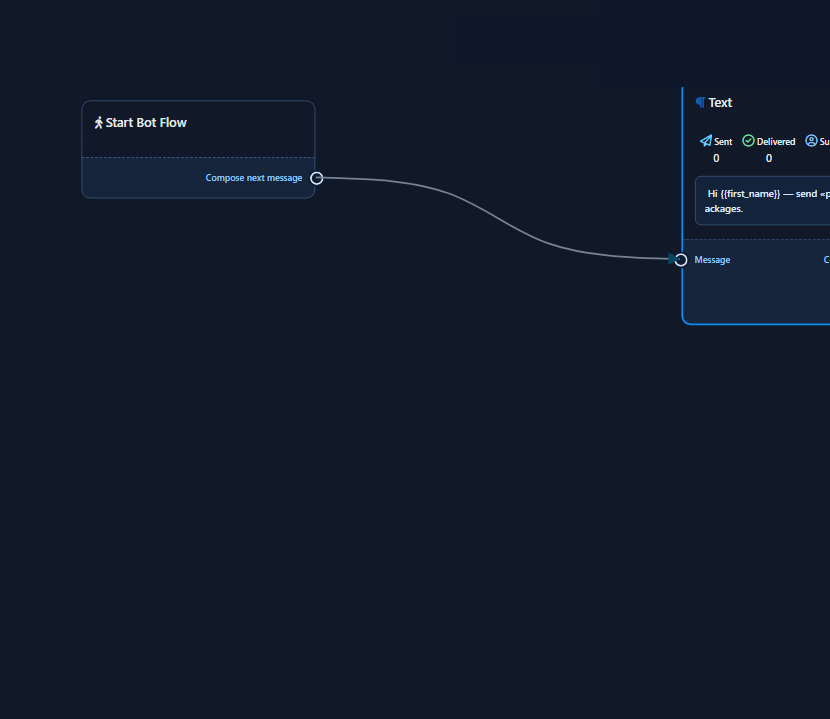
Every new flow starts with Start Bot Flow. Double-click opens Configure Reference:
- Trigger keywords (comma-separated).
- Match type: Exact keyword match or String match.
- Done / Cancel.
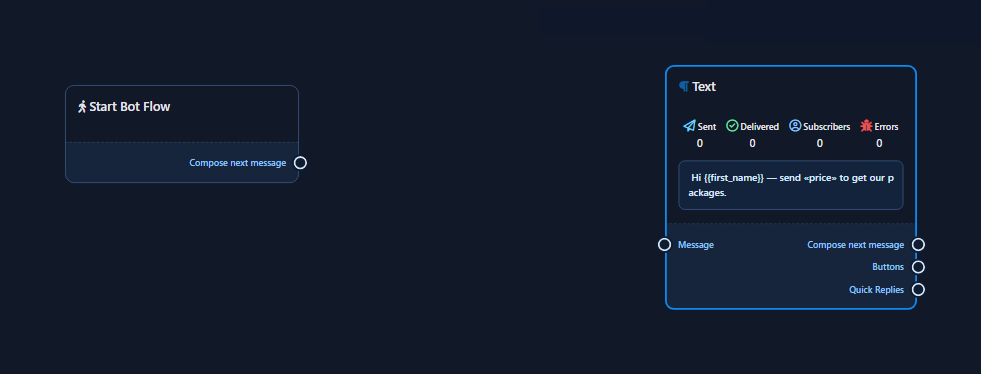
Primary output: Compose Next Message.
Element dock
Live Instagram dock labels: Text · Image · Audio · Video · File · Card · Carousel · Ecommerce · Conditional reply · New sequence campaign · User Input Flow · Recurring notification · AI reply · HTTP API. No Facebook Media. Toolbar: Save (Ctrl+S), IG chip, Back / Rearrange.

4) Wiring in detail
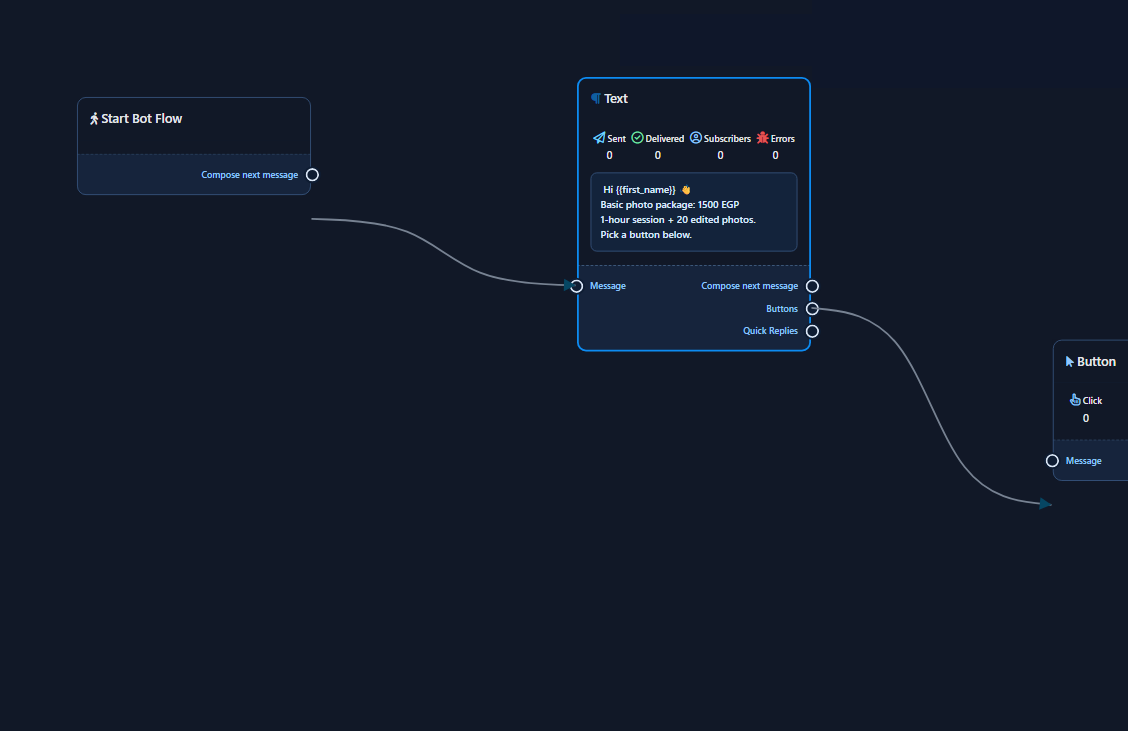
Wiring is the difference between «a canvas full of cards» and «a scenario that actually runs». Every node has input/output sockets. Drag from an output circle to an input circle — or drag from an output onto empty canvas to open the component list.
Method A — Compose Next Message
- From Start Bot Flow (or any text/media node), hover the Compose Next Message output socket.
- Drag slightly onto empty canvas → a component list appears (same families as the dock: Text, Image, Card…).
- Pick a type; the list becomes that node, already connected by a wire.
Method B — Dock then wire
- Drag a dock icon onto the canvas.
- Wire the node’s Message (or visible) input from the previous node’s output.
Interaction outputs
- Buttons: from Text or Card. Dragging creates a Button node per button; each button has its own action (see Buttons section).
- Quick Replies: creates a Quick Reply node. Chips appear above the customer’s keyboard in Instagram Direct.
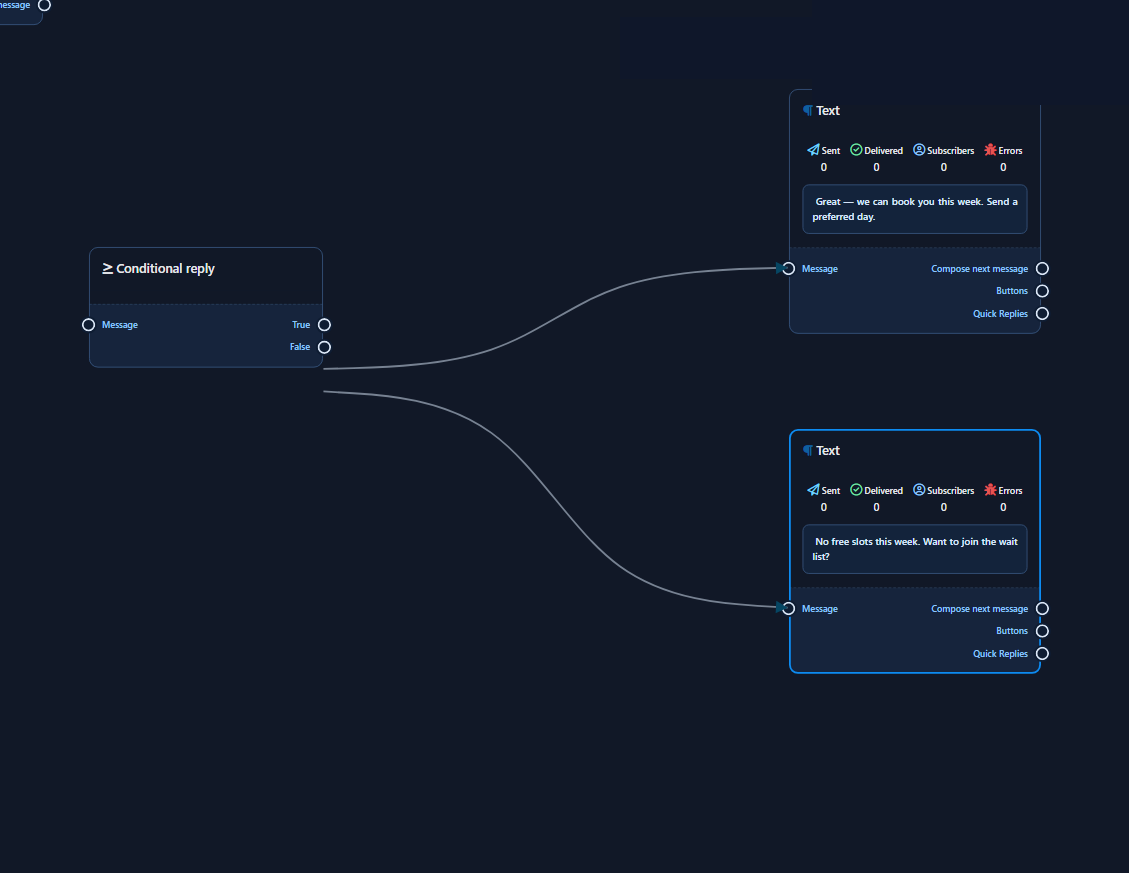
- True / False: from Conditional Reply — both branches should be wired for a complete path.
- Items: from Carousel to Carousel Item nodes; each item exposes Buttons.
- Questions: from User Input Flow to New Question nodes.
Rejection messages & limits
- You made an incompatible connection — output type ≠ input type.
- Connection removed due to recursion — loops are not allowed.
- All components should be connected — floating node with no wire.
- Some component(s) have no data — required fields empty.
- A single output may refuse too many links («You cannot connect more than…»).
Practical tip: build the main path first (Start → Text → Buttons), Save, then add side branches. Do not drop ten floating nodes and wire them all at once.
Wiring teaching screenshots
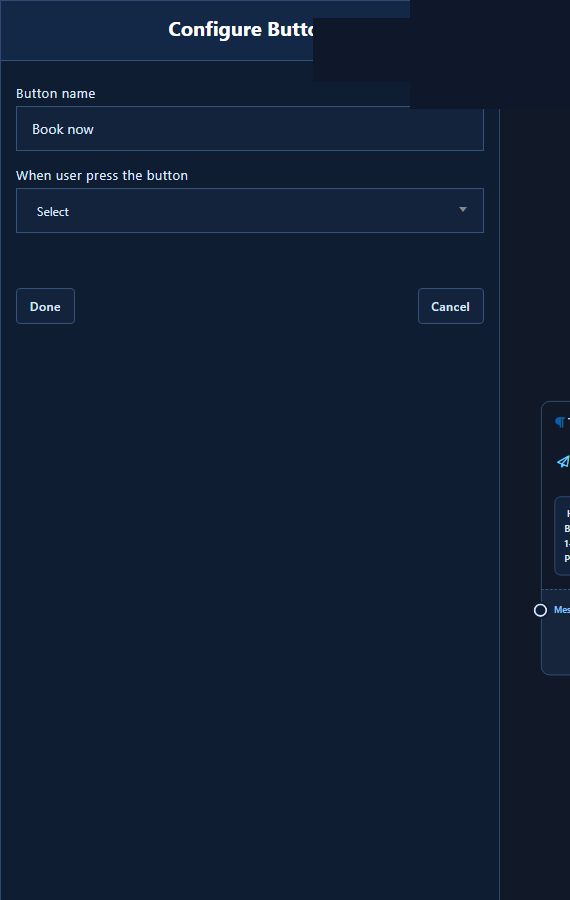
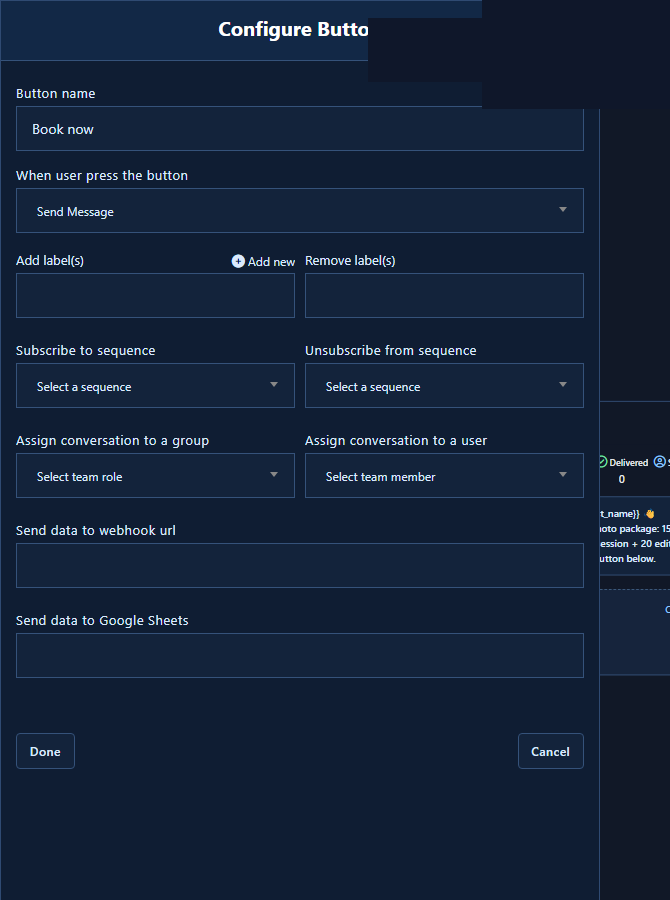
Teaching screenshots with real data (price keywords / 1500 EGP package / button types / condition branches):
5) Teaching scenario: a real «Prices» flow
Goal: customer asks about price in DMs; bot replies with a clear offer and branches via buttons. Use real copy — not «123» or «test».
5.1 Keywords in Configure Reference
Double-click Start Bot Flow. Example keywords:
سعر,أسعار,كام السعر,بكام,قائمة الأسعار,price
- String match catches the phrase inside a longer sentence.
- Exact keyword match is stricter / quieter.
- Press Done. Suggested reference name: أسعار_المنتجات_IG.
5.2 Welcome Text node
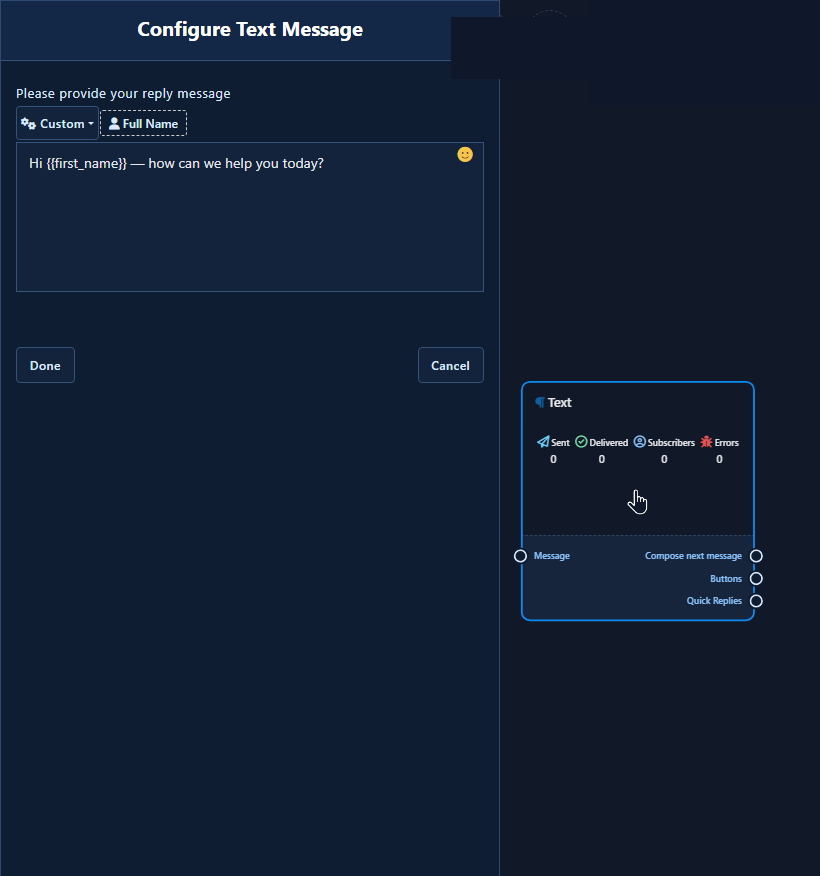
Compose Next Message → Text → Configure Text Message. Example:
Hi #LEAD_USER_FIRST_NAME# 👋
July design package prices:
• Daily Stories pack: 900 EGP / week
• Reels ×4 pack: 2,400 EGP / month
• Full management pack: 4,500 EGP / month
Use the buttons below to continue.
Use Full Name / Custom tags, then Done.
5.3 Optional Card
Configure Generic Template: Title «Reels ×4 — July», Subtitle «2,400 EGP including script & edit», image + click URL, then Buttons.
5.4 Three real buttons
- Button name: Pack details
When user press the button: Send Message
Wire to a Text node with the package inclusions. - Button name: Order now
When user press the button: Redirect to website url
Paste your order/payment HTTPS URL. - Button name: Talk to agent
When user press the button: Start a flow
Pick an existing flow such as تحويل_موظف_IG — this is the modern postback-to-existing-flow pattern.
5.5 Quick replies
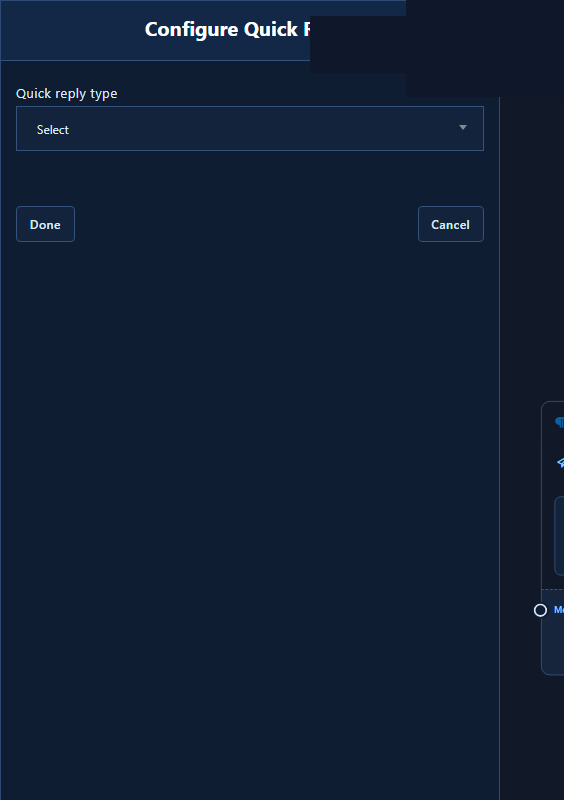
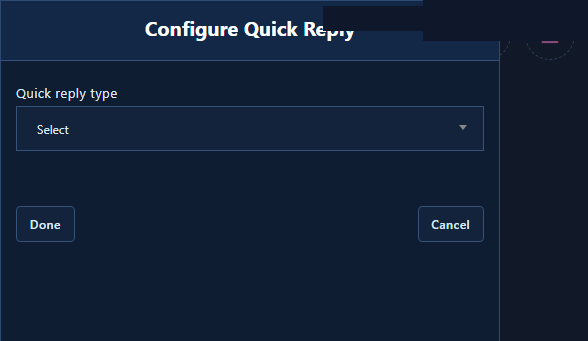
Configure Quick Reply → type Send Message or Start a flow. Keep chip labels short.
5.6 Simple condition
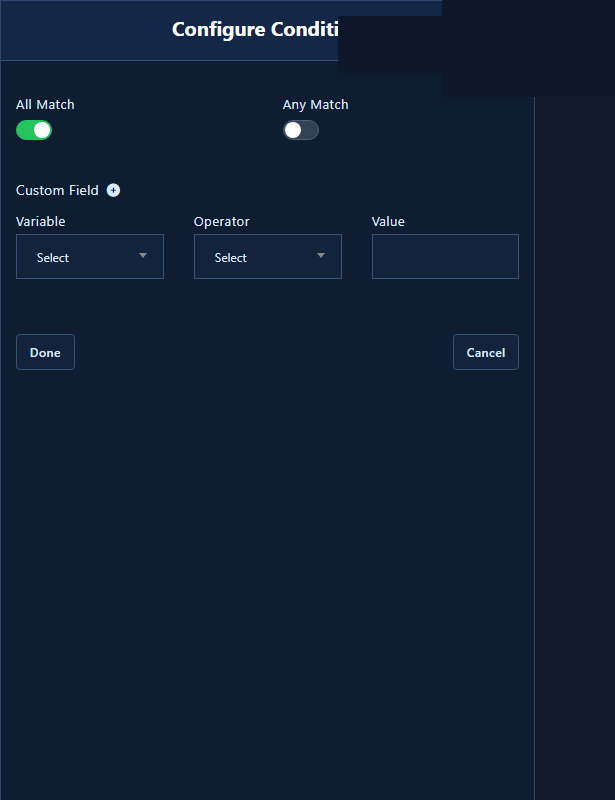
Conditional Reply: All Match / Any Match; Custom Field row (Variable, Operator, Value). Wire True and False to different texts (e.g. free delivery in Cairo vs shipping fees).
5.7 Save and test
- Confirm every node is wired and filled.
- Save next to the IG chip.
- From the Instagram app, send «كام السعر» and test every button and chip.
6) Buttons encyclopedia: Send Message × Start a flow × URL × user data
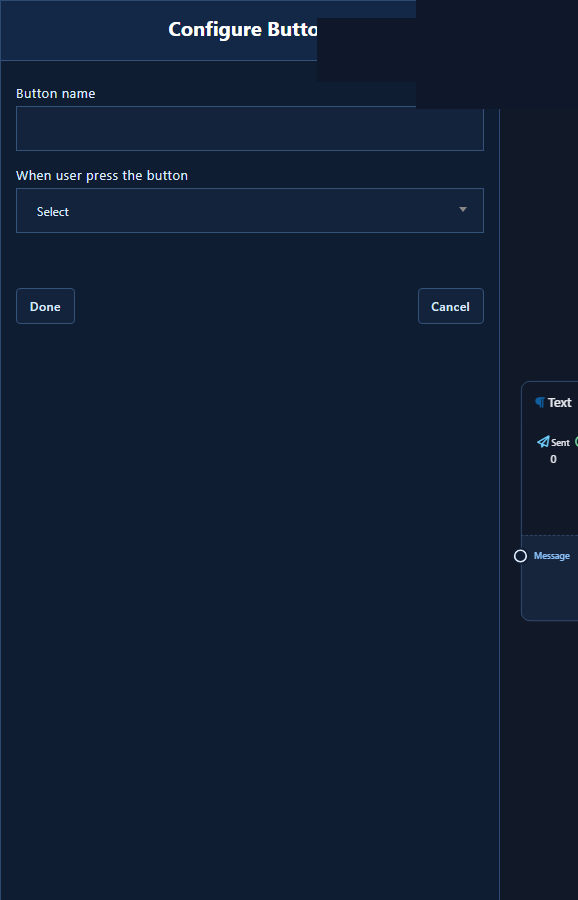
Open Configure Button by double-clicking a Button node. Core fields:
- Button name — what the customer sees under the DM.
- When user press the button — the action dropdown.
6.1 Send Message
Meaning: after the tap, continue to the next message node you wire from this button’s output (Text, Image, Card…). Use it when the copy is specific to this branch inside the same flow — e.g. «Pack details» in the prices example.
Steps: choose Send Message → Done → drag from the button output to a new node or the component list → fill content → Save.
6.2 Start a flow (postback to an existing flow)
Meaning: jump to another flow saved in the Bot Reply list (by Reference Name). This is the modern ChatLike Instagram equivalent of «postback to an existing path»: do not redraw «Talk to agent» or «FAQ hub» inside every prices flow.
When to use: shared journeys (human handoff, refund policy, main menu). When to avoid: a tiny branch unique to this flow — then Send Message is clearer.
Steps: create & save the target flow first → return to the prices button → choose Start a flow → pick it from the list → Done → canvas Save.
If prompted: please choose a flow from the list above.
6.3 Redirect to website url
Opens an external link (store, wa.me, Google Form, checkout). It does not build a next-message node for that button — use a valid HTTPS URL.
Classic UI may also say Web URL. On the live Instagram demo, the label shown in shots is Redirect to website url.
6.4 User data options
Options to collect user data (phone, email, location…) may appear depending on account addons. Instagram availability is narrower than Messenger; if unsure, use User Input Flow for clearer questions.
6.5 What not to rely on for Instagram
- Webview FULL/COMPACT/TALL is a Messenger-centric pattern — do not center your IG guide on Webview.
- Do not copy Facebook button flows literally and expect the same DM behavior.
6.6 Card & carousel buttons
The same Configure Button panel applies to Card and Carousel Item buttons. Visual difference: the button sits under the card, not under free text. Meta limits buttons per card — keep 1–3 clear actions.
7) Quick replies in depth
Quick replies are chips above the keyboard — not fixed under-card buttons. From the Quick Replies output → Quick Reply node → Configure Quick Reply:
- Quick reply type: Send Message or Start a flow (options shown on the live IG demo).
- Name chips with short words: «Reels», «Stories», «Agent».
- After Done, wire the quick-reply output to the next text if needed.
Messenger system templates (phone/email/location quick-reply templates) are not the focus here — for structured collection on Instagram use User Input Flow.
8) Encyclopedia of every Instagram dock element
For each element: purpose, fields, when to use it. Always double-click to open the panel, press Done, then canvas Save.
8.1 Text
Purpose: primary DM reply. Panel: Configure Text Message — reply prompt, name tags, message field, emoji, Done/Cancel. Outputs: Compose Next Message, Buttons, Quick Replies. When: welcome, price explain, order confirm, branch messages.
8.2 Image
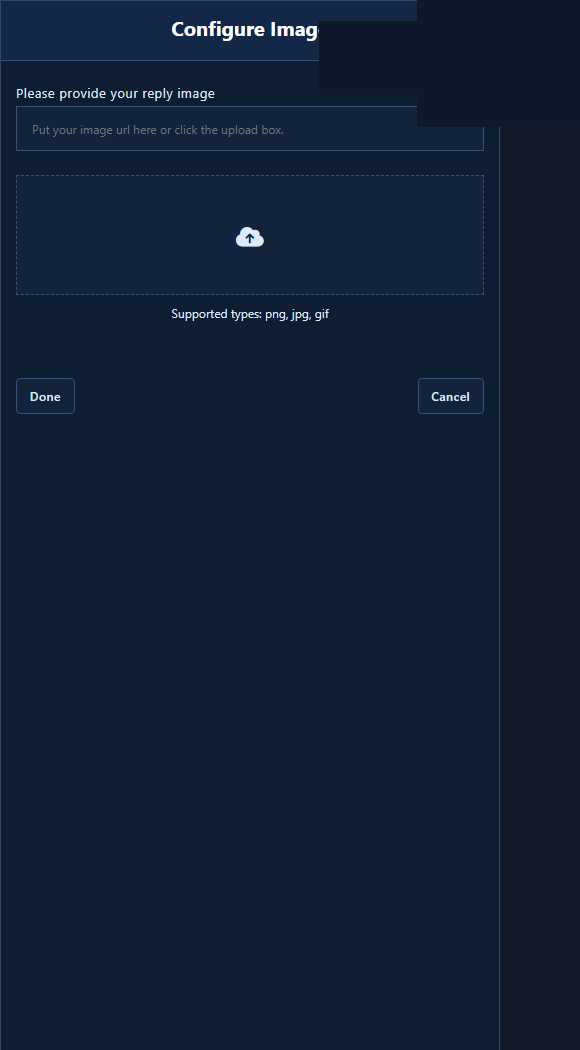
Configure Image: upload or paste URL (Put your image url here or click the upload box). Supported: png/jpg/gif. Use for pictured price lists or before/after.
8.3 Audio
Configure Audio: Please provide reply audio url; upload box; common types acc/m4a/wav/mp4 as shown. Short welcome clips — test on phone.
8.4 Video
Configure Video: URL or upload; Instagram types often include mp4, ogg, avi, mov, webm. Upload a properly encoded video, then Done. Use 15–30s product explainers.
8.5 File
Configure File: URL/upload for documents (DOC/PDF etc. as listed). Example: send a PDF price list after «Download list».
8.6 Card (Generic Template)
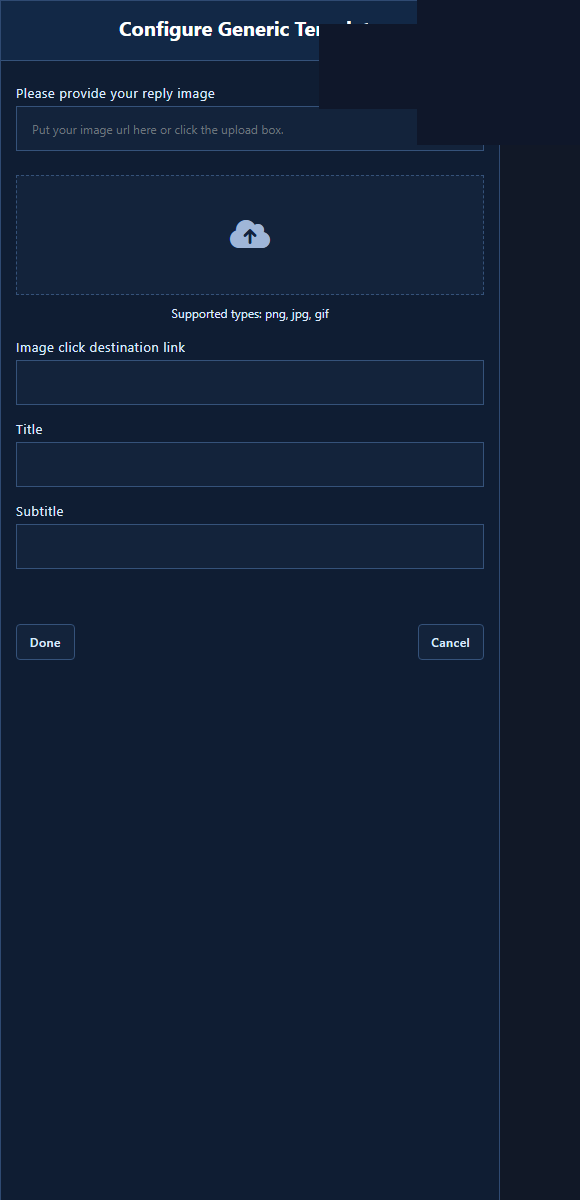
Configure Generic Template: reply image, image click destination link, Title, Subtitle, then Buttons. Ideal for one package with a clear price.
8.7 Carousel
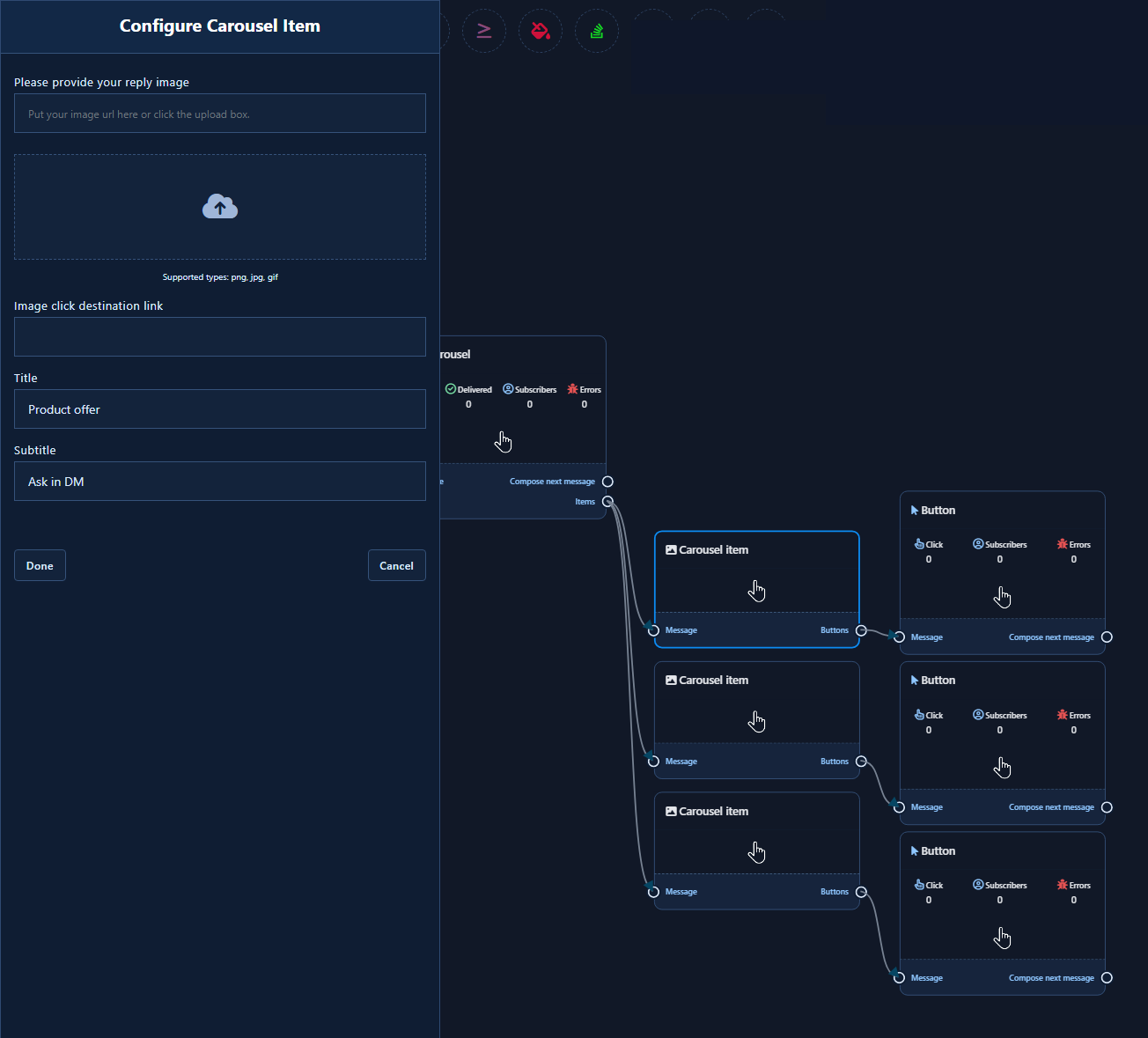
Drag Carousel to spawn Items → Carousel Item. Each item: Configure Carousel Item — image, click URL, title, subtitle, Buttons. Prices example: one slide per package (Stories / Reels / Full management).
8.8 Ecommerce
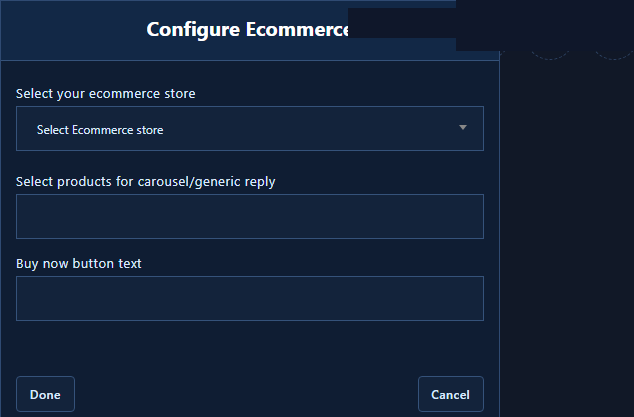
Configure Ecommerce: Select your ecommerce store, Select products for carousel/generic reply, Buy now button text, then Done. Requires a store already set up in ChatLike.
8.9 Conditional Reply
Configure Condition: All Match / Any Match; System Field or Custom Field rows (Variable, Operator, Value). Outputs: True / False. Use after collecting city or interest via User Input Flow.
8.10 New sequence campaign
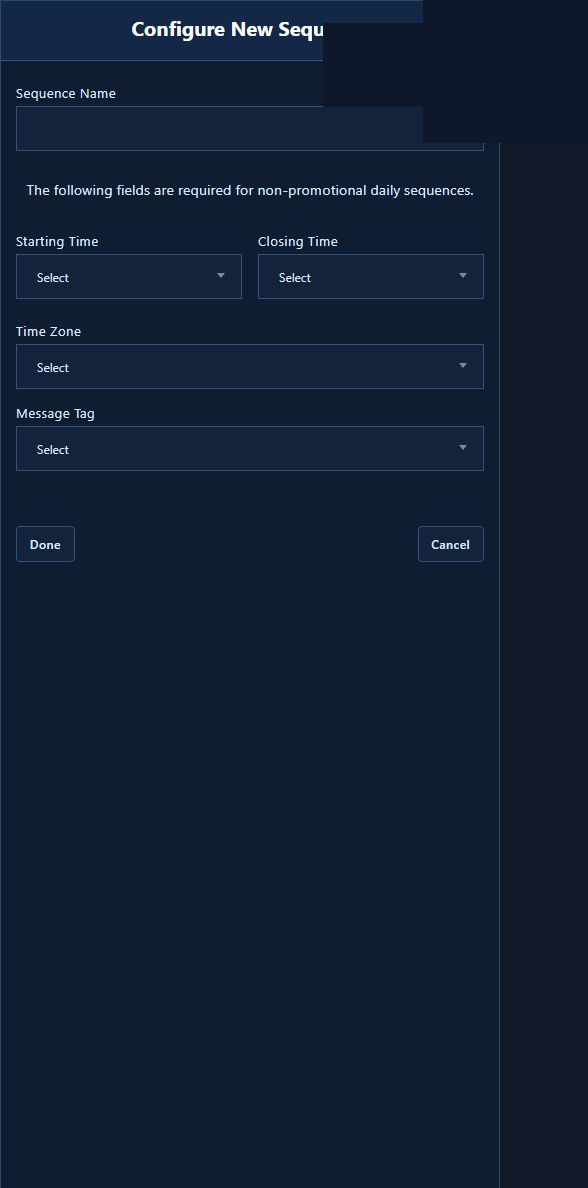
Schedule later messages (hours/days). Fields include sequence name, starting/closing time, timezone, message tag, and promotional/non-promotional frequency as shown. Respect Instagram/Meta messaging windows — sequence is not a substitute for required opt-in.
8.11 User Input Flow
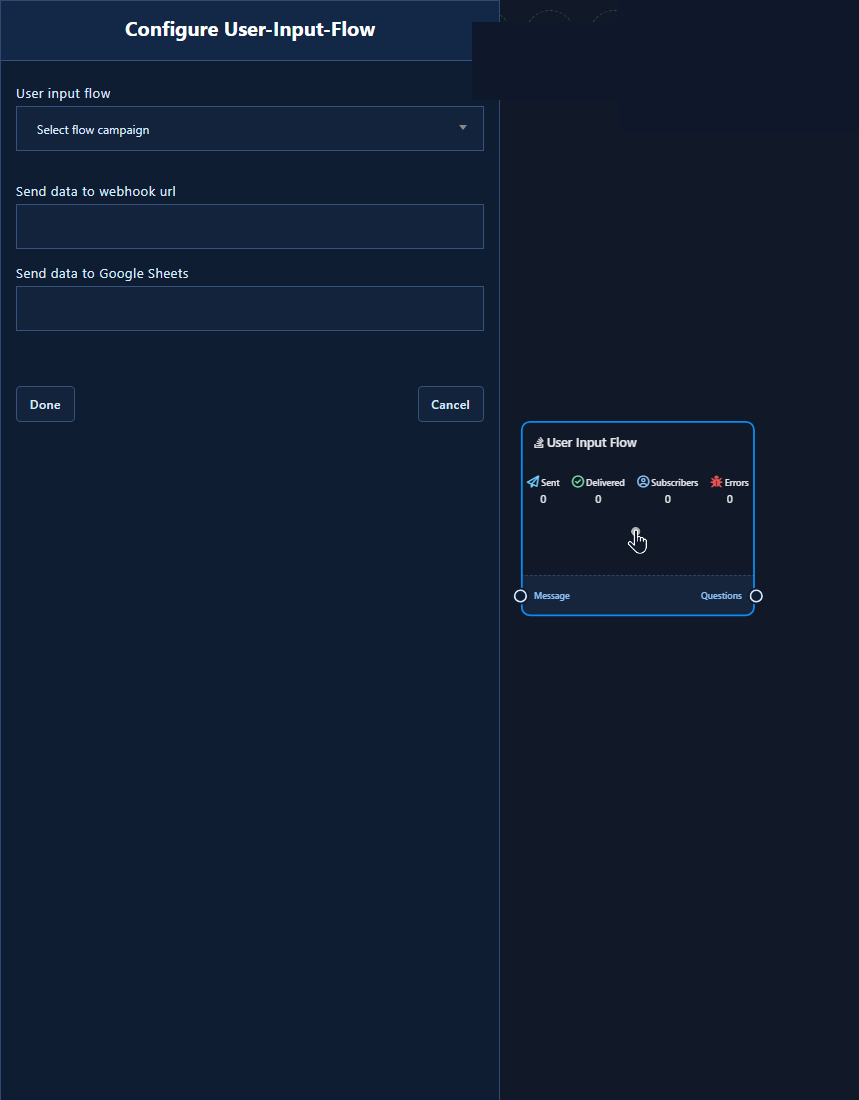
Configure User-Input-Flow: User input flow dropdown (Select flow campaign), Send data to webhook url, Send data to Google Sheets, Done/Cancel. Questions output → New Question (free keyboard or multiple choice; save to custom/system field). Example: ask size then city before order confirm.
8.12 Recurring Notification (RCN)
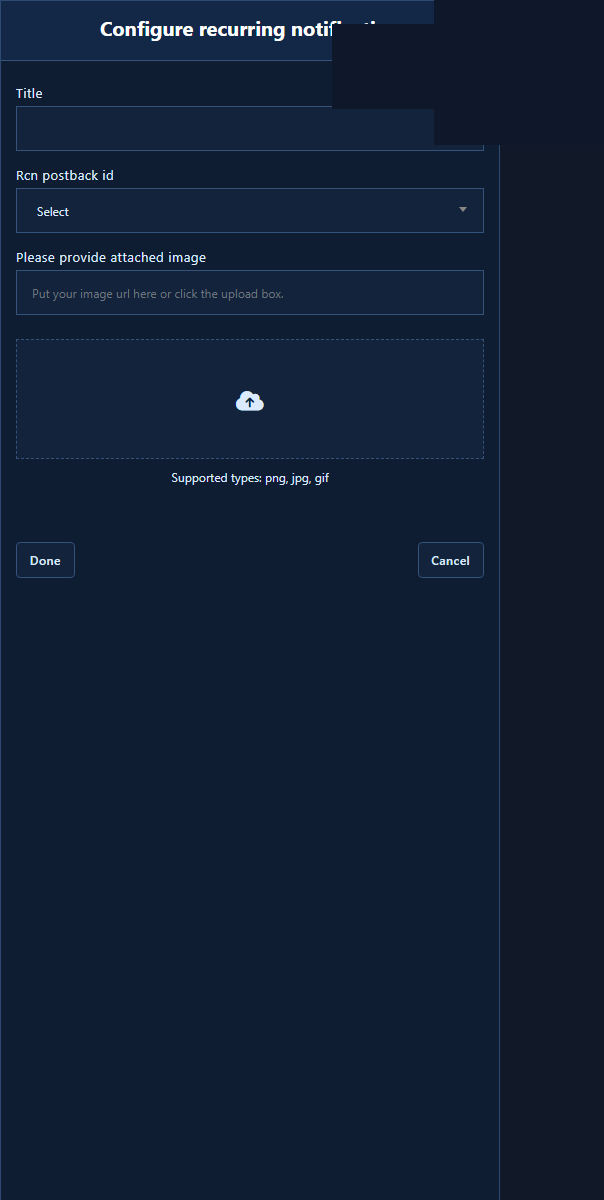
Configure recurring notification: Title, RCN postback id, attached image. Permissioned follow-ups under Meta policy — not random broadcast.
8.13 AI Reply
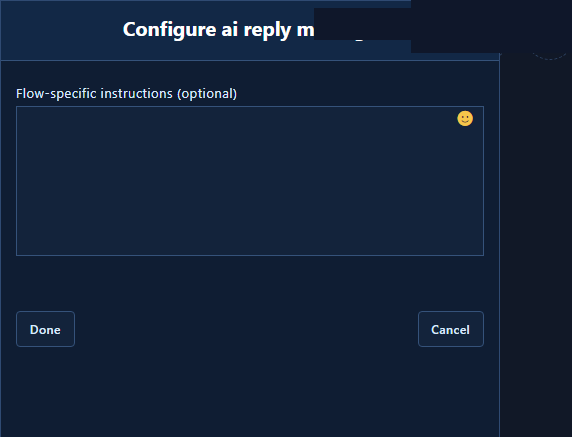
Configure AI Reply Message: optional Flow-specific instructions; knowledge base and products load automatically when configured. Outputs resemble Text (compose / buttons / quick replies). Use for open questions after a structured prices flow — do not replace fixed prices with AI alone.
8.14 HTTP API
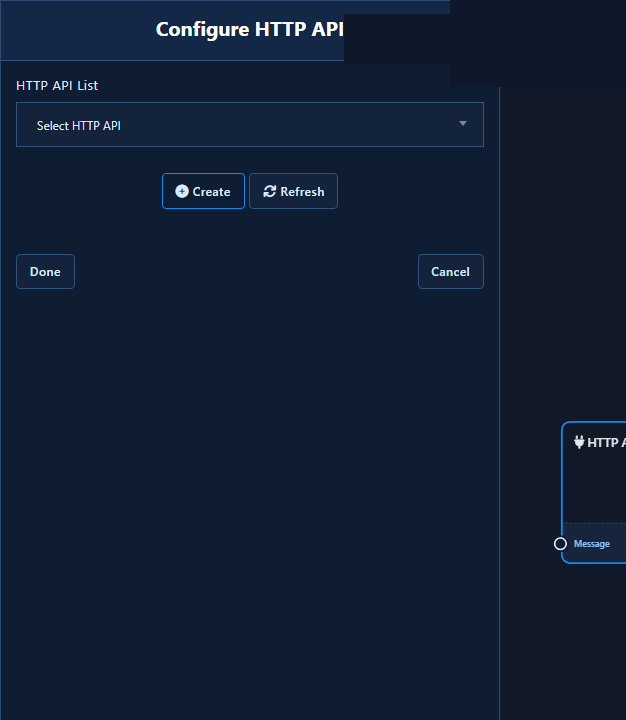
Configure HTTP API: pick a template from the HTTP API List (or Create/Refresh via Integrations), then Compose Next Message. Example: fetch live stock price, then show it in a Text node.
9) Instagram Action button templates (Stories & No Match)
From Action button settings in Bot Manager, a grid of system templates opens inside the same Visual Flow. These are platform events — not ordinary keyword flows.
9.1 Story Mention Template
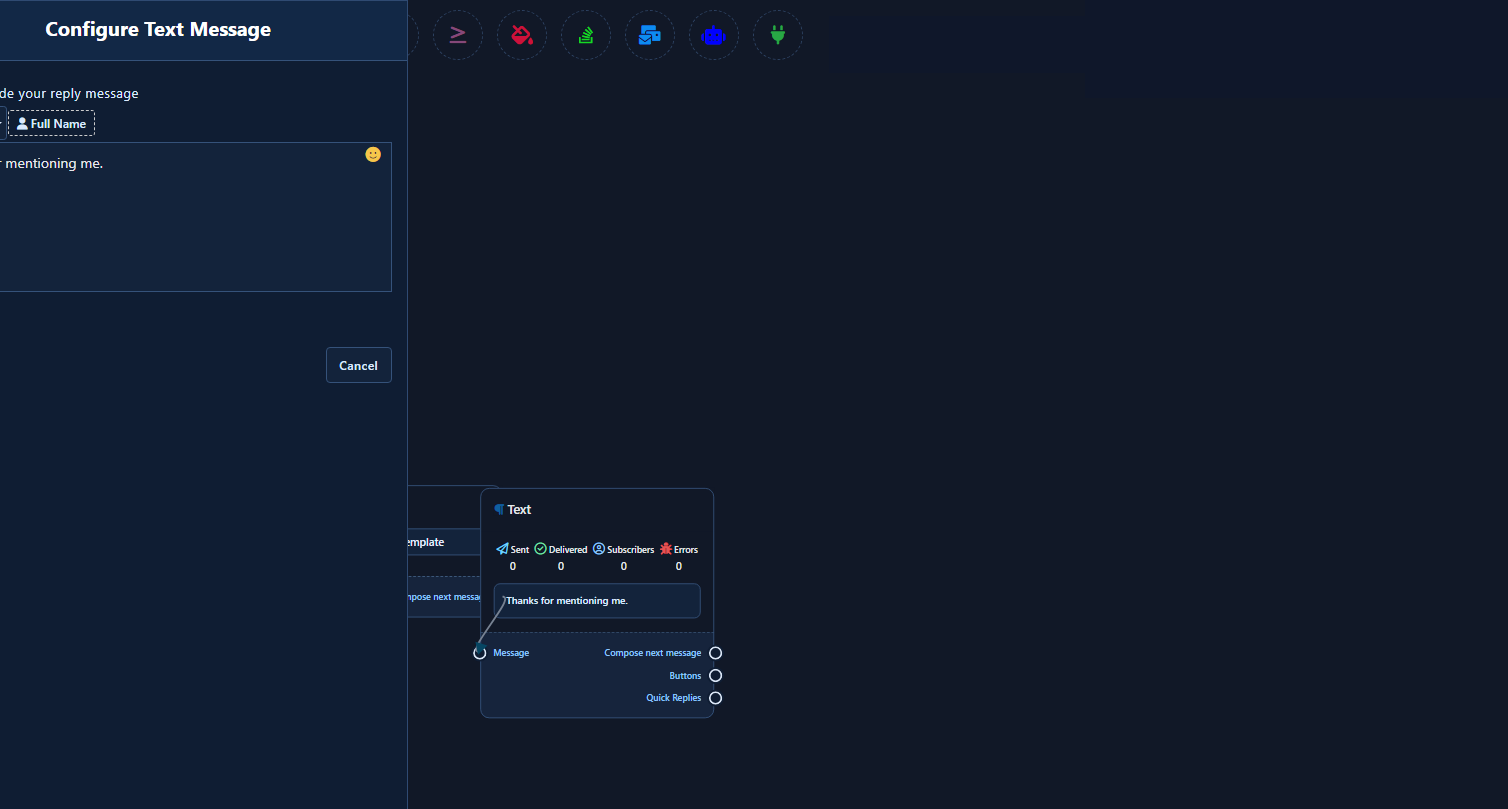
Fires when someone mentions your account in a Story. Open the template from Action button settings, edit the Text node (e.g. «Thanks for the Story mention — reply «price» if you want our package list»), then Save. Longer guide: Story mention.
9.2 No Match Template
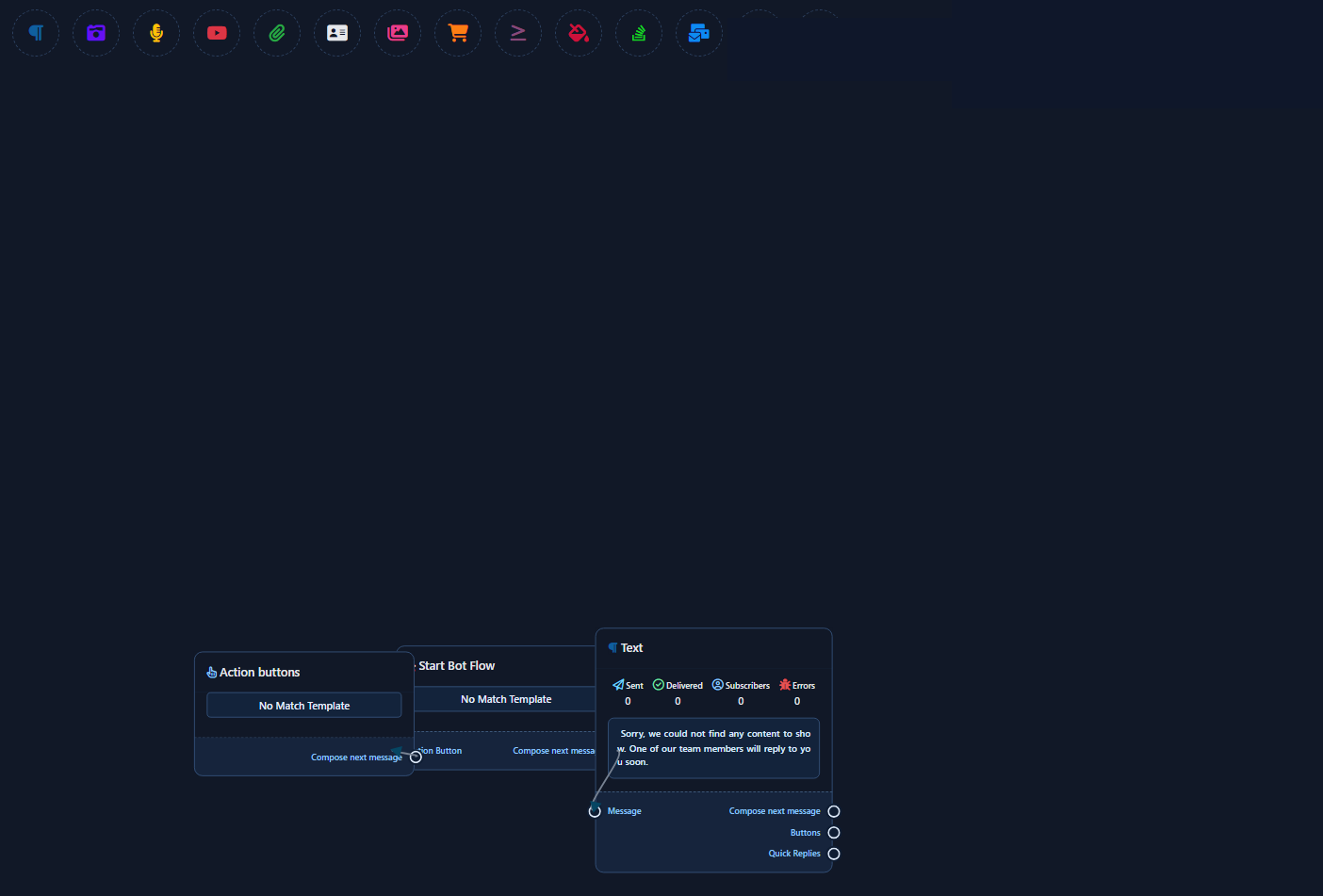
Fallback when the customer’s message matches no keyword. You must enable Reply if no match found under General Settings or the template may not send. Example: «Not sure what you mean — send: price / shipping / agent». Guide: No Match.
9.3 Story Private Reply Template
Private-reply path tied to Story engagement (as available for the account). Keep copy short; optionally button into your prices flow.
9.4 Message Unsend Private Reply Template
Path when a message is unsent. Use a short polite line or redirect to Ice breakers — do not build a long sales funnel here.
Reminder: there is no Get Started on Instagram. For suggested entry chips in the chat UI, use Ice breakers and link them to your flows via keywords or Start a flow.
10) Save and test in Instagram Direct
- Finish wires and required fields.
- Click Save next to IG:.
- Attach a real trigger: keywords, ice breaker, or action template.
- Test every button, quick reply, True/False branch, and URL from the app.
- If nothing arrives: re-check Save, IG chip, Bot Connection, keyword conflicts, human inbox, and No Match switch.
Common mistakes
- Building on an FB: chip and expecting IG DMs to run it.
- Floating nodes or skipping Done inside panels before Save.
- Copying Messenger flows (Get Started / Facebook Media / Webview).
- Over-broad keywords that hijack every chat.
- Editing No Match without enabling Reply if no match found.
- Send Message buttons with no wired next node.
- Start a flow pointing at a missing/wrong reference name.
- Long button labels that truncate on mobile.
Related: IG Bot Manager · Ice breakers · No Match · Story mention · Keywords · Facebook flow guide.


